
Create pricebook for product.
- 13
- September
- 2013
How to add a pricebook for a product?
First we need to create a Pricebook.
Go to product in tab > click on Manage Price Books (under Maintenance)

Click on new and create a Price book and save.
Name – Pricebook Name
Active – TRUE
Now open jitterbit data loader
If you don’t have download it from – http://www.jitterbit.com/salesforce/data-loader
Click on Insert on Jitter Bit and Enter all the required details (User Name, Password, Security Token)
and click on Test salesforce login
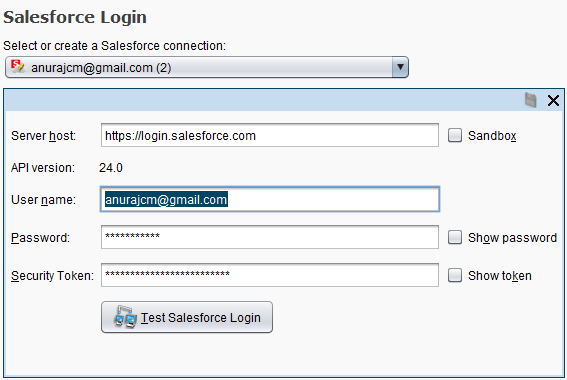
click on next > select object product >

now select the excel sheet from where you are going to insert the product to salesforce>
click next >

In the next page Select CSV file in “Select file type” click next > Map with correct fields and click finish
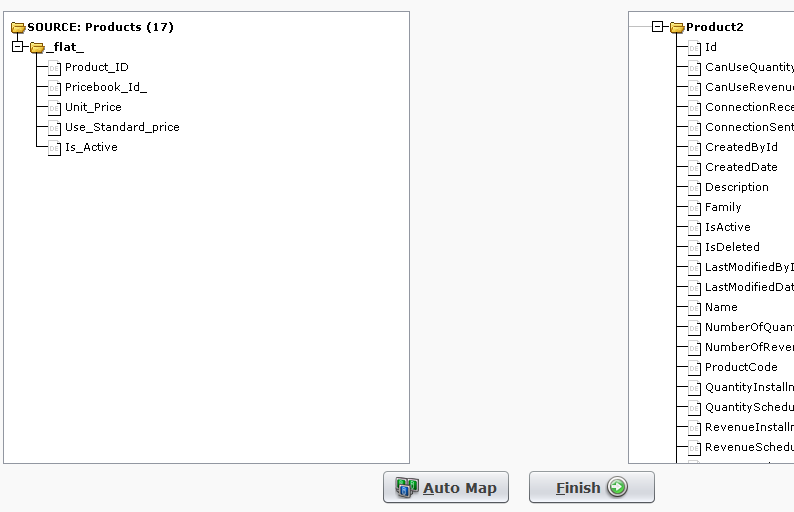
Now click on – Run Insert
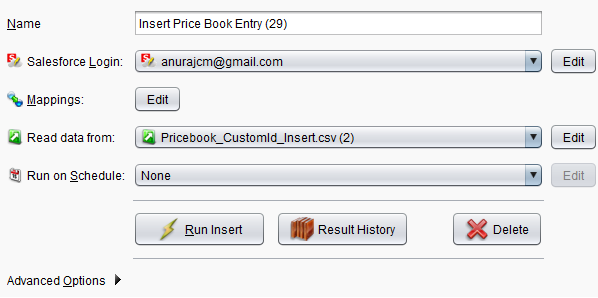
Save the generated success result to another excel sheet product_success_InsertReport
click on query button in jitter bit > select the object Price book >
click next and select fields id and name
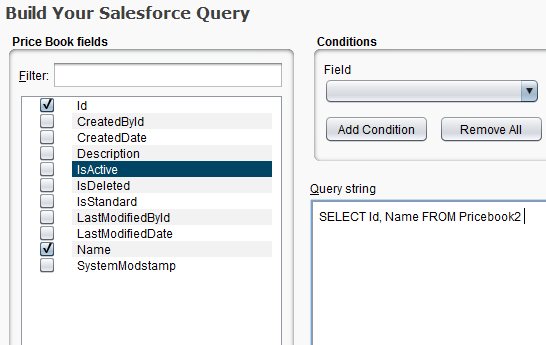
Bowers the path to where we need to save result.
Now Now click on - Run Query
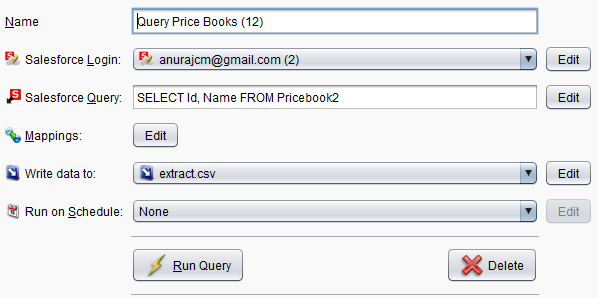
Save the generated success result an another excel sheet Pricebook_QueryReport
Creating price book with standard ID.
Now create a new excel sheet PriceBook_standardID with column name with – >
Product ID , PriceBookID , cost, Use_Standard_price, Is_Active

Product ID – copy all the product id from product_success_InsertReport and past it here
PriceBook ID – copy the standard pricebook id from Pricebook_QueryReport and past it here
cost – enter the cost
Use_Standard_price – should be FALSE
Is_Active – should be TRUE
Jitter Bit
open jitterbit select Insert >
select object Price Book Entry >
browse file PriceBook_standardID >
Select CSV file in Select file type click next >
Map with correct fields
Now Now click on - Run Insert
Creating price book with Cusrom ID.
Create a new excel sheet PriceBook_customId which is same as the PriceBook_standardID file
field names – > Product ID , PriceBookID , cost, Use_Standard_price, Is_Active
Product ID – copy all the product id from product_success_InsertReport and past it here
PriceBook ID – copy the custom pricebook id (The id of the pricebook which is created by you) from Pricebook_QueryReport and past it.
cost – enter the cost
Use_Standard_price – should be FALSE
Is_Active – should be TRUE
jitter Bit
open jitterbit select Insert >
select object Price Book Entry >
browse file PriceBook_customID >
Select CSV file in Select file type click next >
Map with correct fields
Now Now click on – Run Insert
Pricebook for already existing product.
If you want to create price book for already existing products then you need to query the product using jitter bit. Then following these steps
Step 1: Query all the pricebook record from pricebook object using jitter bit. And save it as pricebookQueryResult.
Step 2: Query all the pricebook Entry record with pricebook = custom pricebook Name (You can get your custom price book id from pricebookQueryResult excel sheet. And save it as pricebookEnrtyQueryResult_custID.
Query:
SELECT Id, IsActive, Name, Pricebook2Id, Product2Id, ProductCode, UnitPrice, UseStandardPrice ,product2.Family FROM PricebookEntry where Pricebook2.Name = ‘WesBeam’
Step 3: Now open your main excel sheet from where you are going to copy the new price. Search for product 1 by 1 in the pricebookEnrtyQueryResult_custID excel sheet. And update the unit price for it.
Step 4: Now try to update the pricebook using jitter bit.
Note : Do not Map the fields which you do not want to update e.g. IsActive, Name, PricebookID etc. Just map Id and UnitPrice field in jitter bit and update it.
To update the standard pricebook you need to follow the same step 2, 3 and 4. Only thing you need to change is – “pricebook = Standard Pricebook Name” then the query will be like this
Query:
SELECT Id, IsActive, Name, Pricebook2Id, Product2Id, ProductCode, UnitPrice, UseStandardPrice ,product2.Family FROM PricebookEntry where Pricebook2.Name = Standard Price Book’





Recent Posts
- Account Based Marketing – How Is It Different, and What Are The Best Tactics?
- Add new licenses or cancel subscription for Leadpal appexchange product
- Salesforce to Quickbooks integration options
- Online Salesforce Apex and Visualforce Development Trainings
- Merge and Auto Convert of leads into existing Accounts based on Rules : LeadPal
Archives
- September 2015
- July 2015
- May 2015
- April 2015
- March 2015
- February 2015
- November 2014
- October 2014
- July 2014
- June 2014
- April 2014
- March 2014
- January 2014
- December 2013
- November 2013
- October 2013
- September 2013
- August 2013
- July 2013
- December 2012


